Create and Manage Skill Libraries
Skill Libraries give you a personal, reusable collection of instructions that LatchLoop agents can follow across tasks. You can manage the content in LatchLoop or connect a GitHub repository as its source.
This guide explains how to create, connect, use, update, and safely run skills.
Understand Skill Libraries
A Skill Library is a user-owned collection of standard Agent Skills. The library is mutable, which means you can add, update, and remove its skills over time.
Each skill is a folder with a required SKILL.md file. It can also include:
- References with supporting instructions or background material
- Assets such as templates or images
- Scripts for an approved, repeatable operation
A skill is a reusable procedure or set of instructions. It is not the report, plan, code change, or other output produced when an agent follows those instructions.
How Skill Libraries differ from other features
- Plugin-provided skills come from an installed plugin. They can appear alongside personal skills when you search, but you do not manage them in your personal library.
- Context Sources give the agent information relevant to a project or task. A skill tells the agent how to carry out a reusable procedure.
- Artifacts are saved outputs from agent work, such as a report, specification, or summary. A skill is guidance for producing work, not the finished work itself.
If a library is available to All projects, its skills can be discovered from every project you are permitted to use. LatchLoop does not load every skill’s full instructions into every prompt. It shows compact details first and reads a skill only when it is mentioned or needed.
Understand privacy and availability
Skill Libraries in this release are personal and user-owned. They are not public or team-owned.
When you choose All projects or Selected projects, you control where you and your agent can discover and use the library. This setting does not grant another person access to your library.
Keep these access rules in mind:
- A teammate does not gain access to your personal Skill Library merely because they can access the same project.
- Project availability affects your use of the library; it does not turn the library into shared project content.
- Skill Libraries do not have public sharing links in this release.
Open Skill Libraries
- Open Settings.
- Select Skills or Manage Skill Libraries.
- Choose a library to view its details, or create or connect a library.
The library list shows the information you need to understand its current condition, including:
- the number of indexed skills
- sync status for connected sources
- availability in all projects or selected projects
- version history for managed libraries
- agent-proposed changes waiting for your decision
- one-time script approvals waiting for your decision
Create a managed library
A managed library stores the skill content you accept in LatchLoop and gives you version history, editing, restore, and export controls.
- Open Settings → Skills.
- Select Create library.
- Choose Managed library.
- Enter a clear library name and optional description.
- Choose All projects or select the projects where you want to use it.
- Create the library.
You can change project availability later without changing the skills themselves.
Add skills to a managed library
Choose the method that matches what you have:
- Open the managed library.
- Select Add skills.
- Add content in one of these ways:
- Select a folder containing one or more valid skill folders.
- Upload a ZIP containing one or more valid skill folders.
- Upload a standalone
SKILL.mdfor a skill that has no additional resources. - Create a new skill in the editor.
- Review the skills LatchLoop found, along with any warnings.
- Resolve duplicate names by choosing Replace or Skip for each duplicate.
- Confirm the import.
LatchLoop validates the skill names, required files, and SKILL.md frontmatter—the identifying details at the top of the file—before import. If an upload contains both valid and invalid skills, the confirmation explains that only valid skills can be imported. Review the warnings before continuing; invalid skills are not added.
Choose Add skills or Replace entire library
- Add skills adds or updates the skills you select while preserving unrelated skills already in the library.
- Replace entire library makes the library match the import. Any existing skill omitted from the import is removed.
Warning — replacement is destructive: Before choosing Replace entire library, export the current library or confirm that its version history contains what you may need. Carefully review the list of skills that will be removed before confirming.
When an imported skill has the same name as an existing skill:
- Choose Replace to use the imported copy.
- Choose Skip to keep the current copy unchanged.
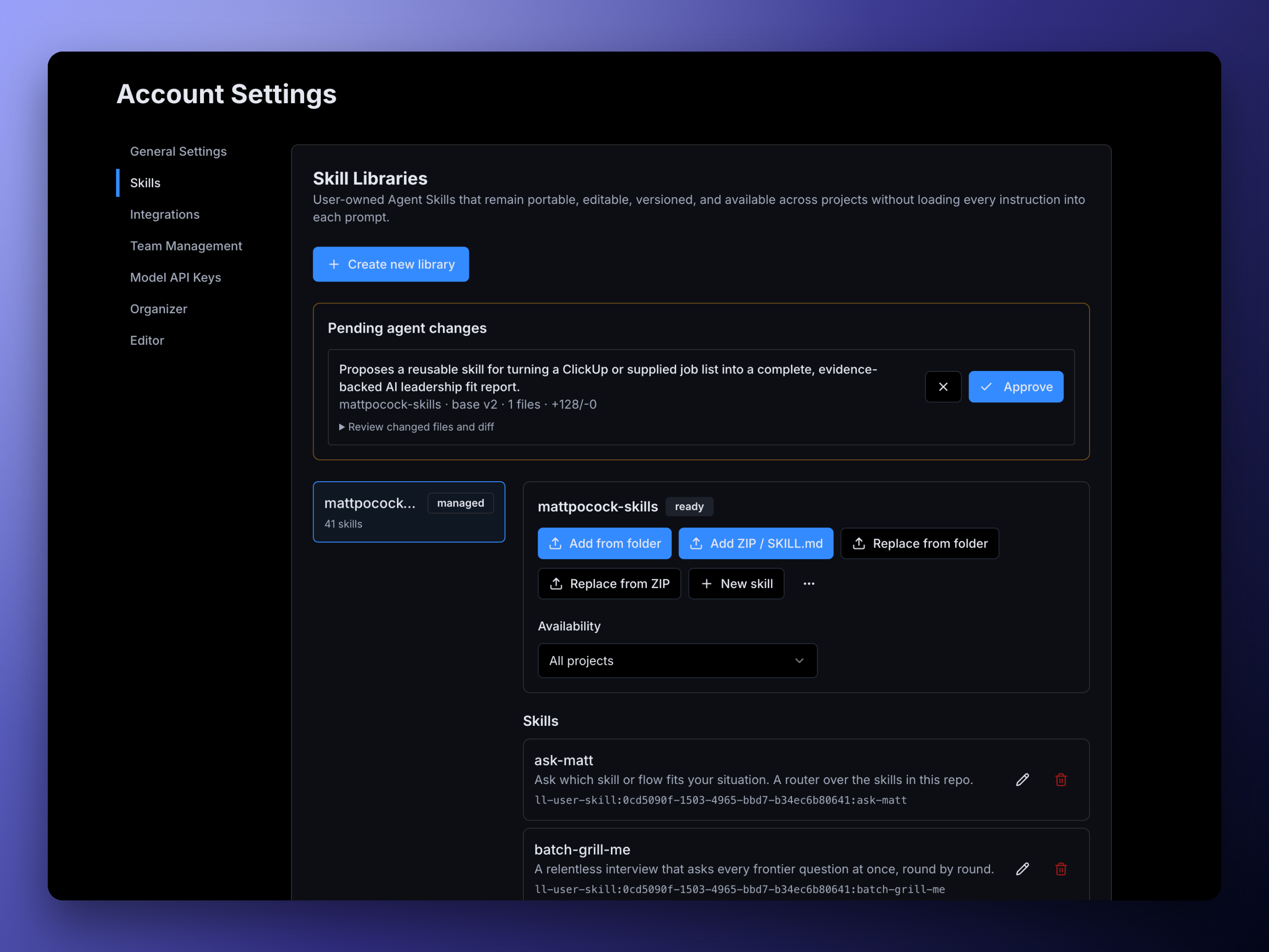
Edit or delete a managed skill
You can edit the skill’s instructions and text resources directly in LatchLoop.
- Open Settings → Skills and select the managed library.
- Select a skill.
- Open
SKILL.mdor a text resource in the editor. - Make your changes and review any validation messages.
- Save the change.
Binary resources, such as many images or packaged files, cannot be edited in the text editor. Download a binary resource to inspect or update it with an appropriate app, then add the updated resource to the skill.
To remove a skill:
- Open the skill.
- Select Delete skill.
- Review the skill name and confirm deletion.
Warning — deletion removes the skill from future use: Export the library first if you may need a separate backup. For a managed library, you can also restore an earlier library version.
Every successful managed-library change creates a new immutable version. Earlier versions remain unchanged, giving you a reliable history even as the current library evolves.
View, restore, or export a managed version
- Open the managed library.
- Select Version history.
- Choose a version to see when it was created and what changed.
- Select View diff to compare its changes.
- To return to earlier content, select Restore and confirm the selected version.
Restoring does not rewrite the old history. It creates a new current version from the earlier accepted content.
To keep a portable copy, select Export ZIP. The export contains the accepted skill content from the selected managed-library version.
Warning — restoring changes the current library: Review the diff and affected skills before confirming. Export the current version first if you want an additional backup.
Connect a GitHub-backed library
Before connecting a repository, install and connect the LatchLoop GitHub App with access to that repository. See GitHub Integration for setup help.
To connect the library:
- Open Settings → Skills.
- Select Create library, then GitHub-backed library.
- Choose the repository owner and repository.
- Select the branch that contains the skills.
- If the skills are inside a particular folder, enter the optional root directory.
- Choose whether the library is available in all projects or selected projects.
- Review the write policy, then connect the library.
GitHub remains the source of truth. LatchLoop indexes and caches valid skills so the agent can discover and use them, but it does not turn the connected library into a separately managed copy.
Choose a write policy
- Branch + pull request is the default. An accepted change is prepared on a branch for review through a pull request.
- Direct commit writes an accepted change directly to the selected branch.
Under either policy, an agent can only propose a change. You must explicitly approve it before LatchLoop writes to GitHub.
Warning — direct commits bypass pull-request review: Use Direct commit only when writing straight to the selected branch is appropriate. Protected-branch rules and repository permissions still apply.
Sync and manage a GitHub-backed library
The status shows whether the indexed skills reflect the connected source:
- Ready: The latest sync completed successfully.
- Stale: The last indexed copy may no longer match the source or could not be refreshed.
- Error: LatchLoop could not complete the sync. Open the status for details.
A reachable repository can appear as an empty library when the selected branch and root directory contain no valid skills.
From the library details, you can:
- Select Sync now to check the source and refresh the index.
- Select Retry sync after resolving an error.
- Select Edit source to change the branch, root directory, availability, or write policy.
- Select Delete to remove the connection from your Skill Libraries.
Warning — deletion removes the library connection from LatchLoop: Confirm that no current tasks depend on it. Deleting the library connection does not delete the GitHub repository, but its skills will no longer be available through this library.
Do not edit GitHub-backed skill files in the managed-library editor. Change them in GitHub, or approve an agent-proposed GitHub change, and then sync the library.
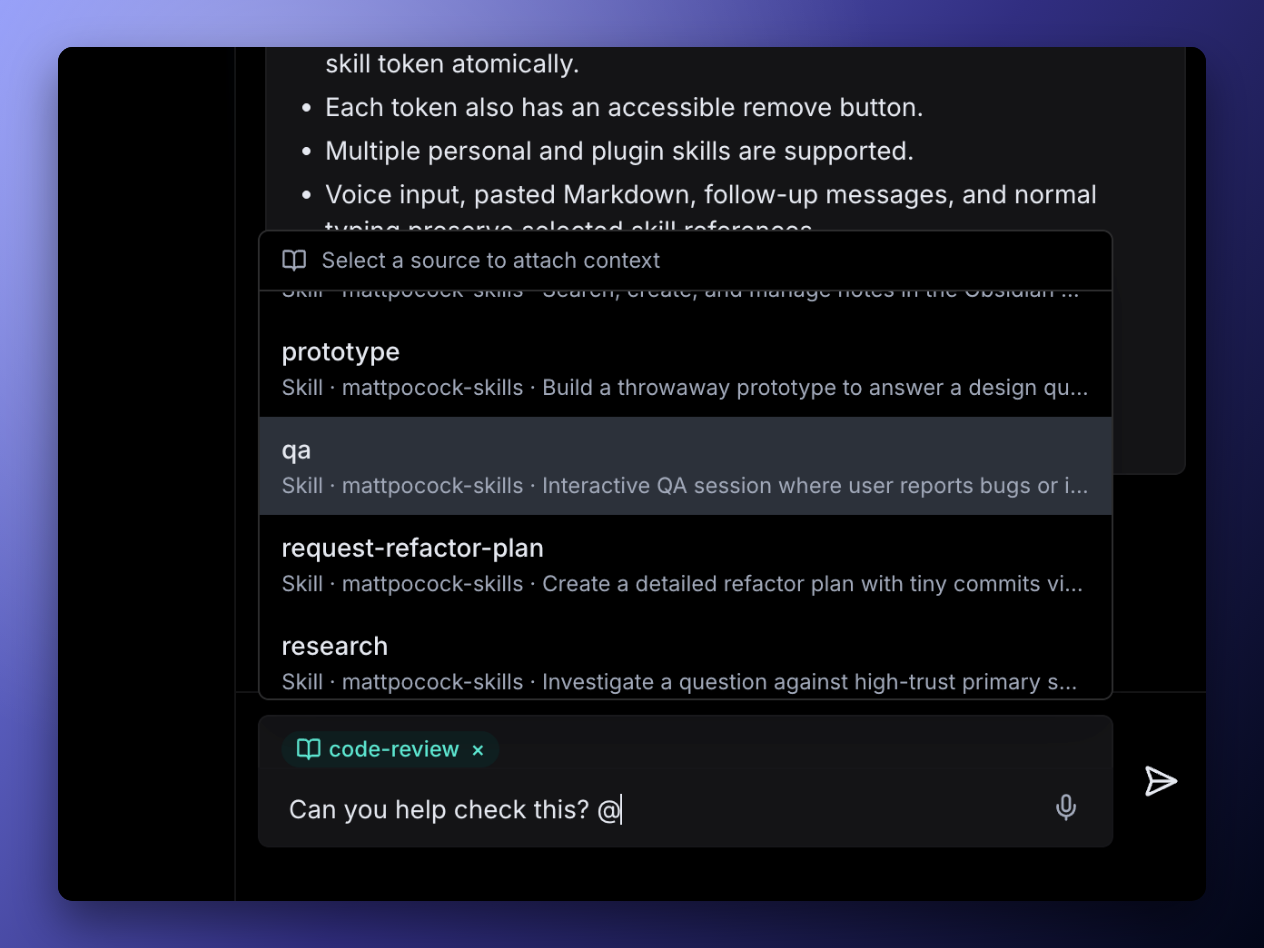
Use a skill in a task or AI conversation
- Open a task description or AI conversation.
- Type
@and begin entering the skill’s name. - Select an accessible skill from the suggestions.
- Tell the agent what you want it to do with the skill.
Plugin skills and your personal skills can appear in the same search. LatchLoop initially gives the agent compact information about available skills. It loads the full SKILL.md, or a particular resource, only when you mention it or the agent needs it. This keeps prompts focused and reduces conflicts between unrelated instructions.
For example:
“Follow @Release checklist when preparing this change for review.”
“Use @Customer interview analysis and read its
references/scoring-guide.mdresource before summarizing these notes.”
If a library is available to All projects, this discovery works across every project you can use. It still does not preload all of the library’s instructions into each task.
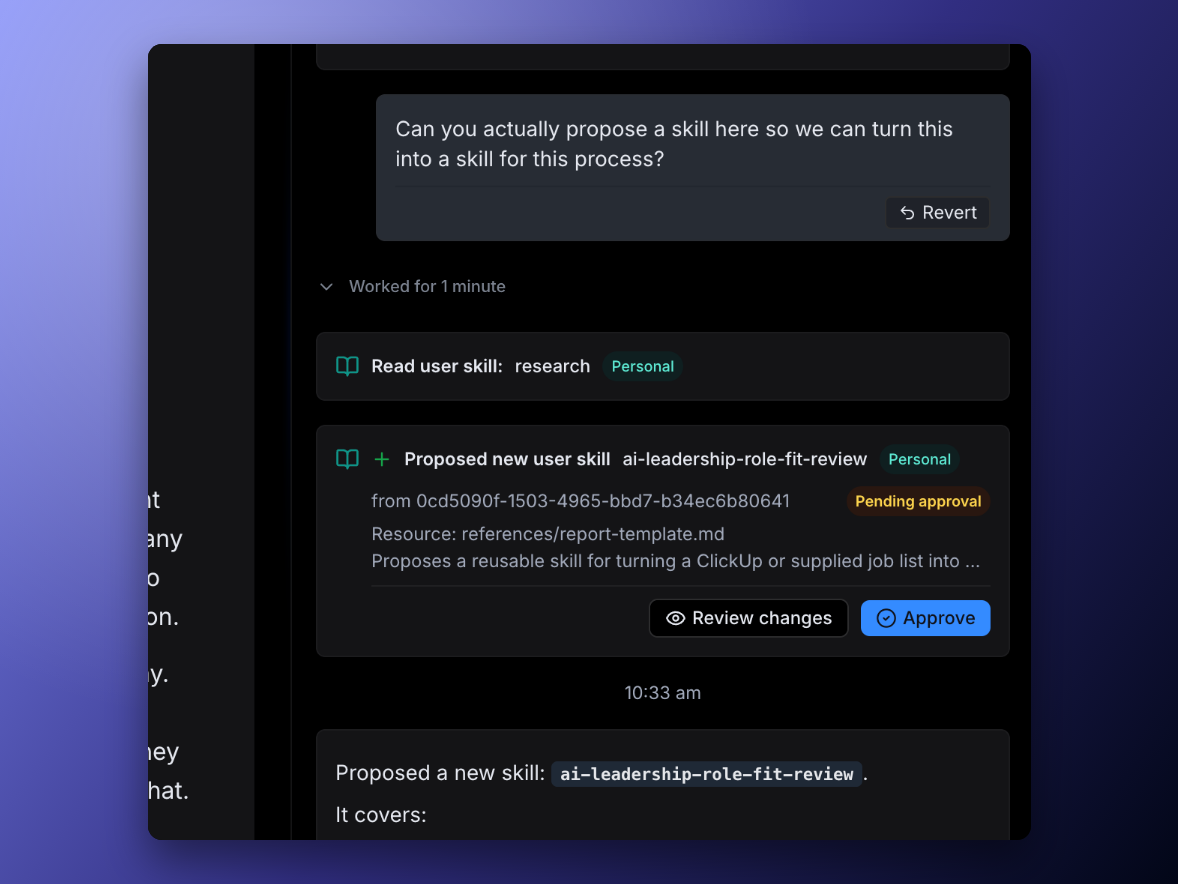
Review an agent-proposed change
An agent can propose creating, updating, or deleting a skill, or adding a resource. It cannot silently save the change to a managed library or GitHub-backed library.
To review a proposal:
- Open Settings → Skills.
- Open Pending changes and select the proposal.
- Read the summary and review the changed files.
- Inspect the diff to see exactly what would be added, changed, or removed.
- Select Approve to apply the proposal or Reject to leave the library unchanged.
Approval uses the library state the proposal was created for. If the managed library or connected GitHub branch changed afterward, the proposal becomes stale and fails safely instead of overwriting newer work. Ask the agent to create a new proposal against the latest version.
Warning — review deletions and GitHub writes carefully: Approval can remove skill content or write accepted changes according to the library’s GitHub write policy.
Approve a skill script
Scripts are never run merely because a library is imported, indexed, mentioned, or read. Cloud script execution uses a dedicated script-execution tool and requires a fresh, one-time approval for every invocation.
When the agent requests a script run:
- Open the one-time approval.
- Confirm the skill and exact script path.
- Review the runtime and version.
- Review every argument that will be passed to the script.
- Approve the single invocation, or reject it.
Warning — a script executes instructions: Approve only when you recognize the skill, script path, runtime, and arguments and want that exact invocation to run. A later invocation requires a new approval.
Approved scripts run in a restricted cloud sandbox. They do not inherit your secrets and do not have network access. Local or desktop skill-script execution is not supported in this release.
A skill’s allowed-tools information cannot bypass LatchLoop’s approval requirement or other safety controls.
Keep libraries portable and safe
Managed libraries are portable: export accepted content as a ZIP, and use version history to restore an earlier accepted version.
LatchLoop checks imports before accepting them. Validation includes skill names and SKILL.md information. Unsafe or unsupported input is rejected, including:
- archive paths that try to write outside the import
- symbolic links
- encrypted or unsupported archives
- oversized packages
- similar unsafe archive content
Files outside valid skill folders are not indexed or included in exports. This keeps the library focused on accepted skill content rather than unrelated files that happened to be in an uploaded folder or repository.
Troubleshoot Skill Libraries
No skills were found after import
- Confirm each skill has its own folder with a
SKILL.mdfile. - For a single resource-free skill, upload its standalone
SKILL.md. - Review the import warnings for unsupported or unrelated files.
SKILL.md is invalid
- Open the validation message and correct the reported name or required information.
- Confirm the file is named exactly
SKILL.mdand belongs to a valid skill folder. - Import again after correcting the file.
A duplicate skill prompt appears
- Choose Replace to use the incoming skill.
- Choose Skip to preserve the existing skill.
- Review both versions before replacing content you may still need.
A GitHub library shows Error or Stale
- Confirm the GitHub App can still access the repository and selected branch.
- Check that the optional root directory still exists.
- Select Retry sync. If needed, use Edit source to correct the connection.
GitHub changes cannot be edited directly in LatchLoop
- GitHub is the source of truth for a GitHub-backed library.
- Edit the files in GitHub, or approve an agent-proposed change, then select Sync now.
A skill is missing from @ search
- Open the library and check Project availability.
- Add the current project or choose All projects, then search again.
- Remember that another user’s personal library is not made available by shared project access.
An agent proposal became stale
- The library or GitHub branch changed after the proposal was created.
- Review the latest content, then ask the agent to prepare a new proposal.
A binary resource cannot be edited
- Download it and use an appropriate app to inspect or update it.
- Add the updated resource back to the managed skill, or update it in GitHub for a GitHub-backed skill.
A script approval expired
- The script did not run under the expired approval.
- Ask the agent to request the invocation again, then review the new one-time approval.
Export content differs from the imported folder or repository
- Exports contain accepted content from valid skill folders only.
- Unrelated files outside valid skill directories are intentionally not indexed or exported.
Know the current limitations
This release does not yet support:
- importing a library from a public URL
- team-owned Skill Libraries
- organization-wide policy controls for Skill Libraries
- a Save this workflow as a skill action
- ranking skill suggestions by usage history
- secure local or desktop skill-script execution
There is also no public sharing link for a Skill Library. Export a managed library as a ZIP when you need a portable copy, and share it only through a channel appropriate for its contents.